
Once a library is created, the access rights to it can be set. This is administered via Manage Libraries. Note that which access rights you need to provide is dependent on the Security level setting on the server. Given some Security level settings, and the needs of your organization, it may not be necessary at all to set explicit access rights.
- Prerequisites
- Library Ownership and Library Inheritance
- Explanation of Access Rights
- Adding Access Rights for a User
- Adding Access Rights for a Group
- Changing Access Rights
- Removing Access Rights
- Revert Changes
- What's Next?
| Note: After changing the access rights for a user, they must log out and back in for the change to apply. |
Prerequisites
- You must have Change rights to the library in order to make changes to access rights.
In the below example, only the "admin" user account can make changes to users and groups access rights.
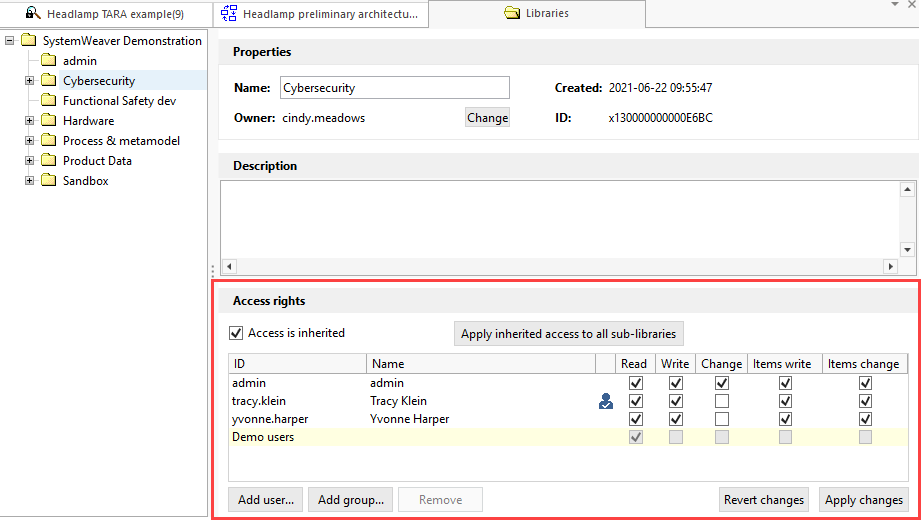
The access control list is displayed in the Access Rights section, as shown above, and lists the user groups and individual users who have access to the items in the selected library as well as what type of access they have. Entries highlighted in yellow are inherited from a parent library. Inherited access rights are not editable in the current library.
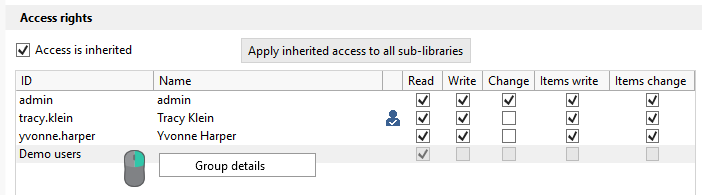
Group entries do not display a Name value. To view the membership of a selected group, right-click on the group entry and select Group details.
An 
Library Ownership and Library Inheritance
Before setting explicit access rights to individual libraries, it is helpful to understand library ownership and the option of library inheritance. We recommend using library inheritance, and the use of groups, as they can greatly simplify access right maintenance.
Library Owner
To begin with, each library has an Owner and the owner is displayed in the Properties section at the top:

The library owner can be changed by a user who has Change rights by clicking on the Change button and selecting the new owner.
| Note: The Owner of the library always has Change rights regardless of what access rights are selected for the owner. |
Inherit Access Rights From Parent Library
As described in Managing Libraries, libraries can be created within libraries. By checking the Access Is Inherited checkbox when viewing a sub-library, any rights set in the parent library of the selected library are inherited to the selected library. If this option is used, all user and group access rights to the parent library will be inherited/applied to the selected sub-library as-is. That is, you cannot make any modifications to the inherited access rights. Aside from any inherited access rights, additional user and/or group access rights to the sub-library can be set up and they will be maintained. In other words, a library can have a combination of inherited and non-inherited access rights. The Access Is Inherited option is default for new libraries and must be actively deselected if it is not desired. In the screenshot at the beginning of this article, the Cybersecurity library inherits the access rights set for its parent - SystemWeaver Demonstration library.
Note: Remember, you cannot change any inherited access rights. If you want to modify such rights, you must remove the inheritance by deselecting the Access Is Inherited option described above. Once you deselect the option, all entries previously inherited will remain in the current library and can be modified or removed. |
Applying Inherited Access to Sub-libraries
The security setting of a library includes the option to apply inheritance to sub-libraries. When the Apply Inherited Access to all sub-libraries option is checked, the security settings will also be applied to the entire substructure. The operation only needs to be performed once since the inheritance option is stored for each library. The operation requires Change rights to the library where the operation is performed. The owner has the right to apply inherited rights to all sub-libraries. In the below example, this option was selected for the Test 0 library. All access rights to Test 0 are now also applied to Test 1 and Test 2 sub-libraries. This is indicated by the Access Is Inherited box at each sub-level.

Explanation of Access Rights
The following access rights to a library are available. An access right can be assigned to an individual user or to a user group. Each type of access right enables a user, or user group, to perform operations on either items or libraries, or both. A user, or user group, can be assigned a combination of access rights if needed.
Whether or not you need to explicitly set an access right to a library depends on the choice of Security level setting for the server, i.e., whether you wish to limit one or more users' ability to performance certain operations on a library or on data in the library. For example, with Security level 3, you must explicitly set access rights. With Security level 0, you only need to explicitly set access rights as a way of limiting access rights.
The below table shows what you can do when the specified access right to the library is assigned:
| What you can do | Note | |
| Read |
| To restrict a user from viewing data in a library, the security level of the server must be set to Security level 3. For all other Security levels (0-2), all users implicitly have Read access. The owner of an item always has Read access to it. |
| Write |
| Write access alone does not provide the access to edit an item. To be able to edit an item, a user needs Items Write access to the library. This applies regardless if the user is the owner of the library or of the item. |
| Change |
| |
| Items Write |
| Items Write access alone does not allow a user to create new items or move existing items to a library. These two operations require Write access. |
| Items Change |
| Moving an item to a another library requires Items Change rights for the "source" library and Write rights to the "target" library. Once an item is moved, if the user does not have Item Change rights to the "target" library, they will not be able to move the item again. The item Owner always has Items Change access. |
* Source vs Target Library: Whenever moving items or sub-libraries, it is important to keep in mind that with any such move, there is a, "source" library that you are moving from and there is a "target" library that you are moving to.
Summary of Operations and Required Access Right
The above listed operations are grouped by type of operation below
| Operation | Access Right | |
Item operations | Read item | Read |
| Change item owner | Items Change | |
| Change item status, i.e., Thaw, Freeze and Release | Items Change | |
| Change item Version info or Version text (Change log) | Items Change | |
| Create item, e.g., New item, New version and replace | Write | |
| Delete item | Items Change | |
| Edit item, e.g., item description, attributes, add parts | Items Write | |
| Move item from library ("source" library) | Items Change | |
| Move item to library ("target" library) | Write | |
| Library operations | Change library access rights | Change |
| Change library name and description | Write | |
| Change library owner | Change | |
| Create sub-library | Write | |
| Delete library | Change | |
| Move sub-library ("source" library) | Change | |
| Move sub-library ("target" library) | Write |
Adding Access Rights for a User
- Select the library you want to give access rights to and click Add user.... The Select User(s) dialog displays.

Select the user or (or multi-select users) and click OK. Alternatively, you can double-click a user entry to add it. The user will display in the access control list.
Checkmark the access rights to assign to the user. In the below example, the individual user John Doe is being given Write rights and the Testers group will have Write and Change rights.
Click Apply changes.

 If you do not click Apply changes, your changes will not save! If you do not click Apply changes, your changes will not save! |
Adding Access Rights for a Group
The most practical way to assign access rights, especially for large systems, is to use groups.
- Select the library you want to give access rights to and click Add group.... The Select groups dialog displays.
- Select the group you want to add in the left-side pane. The members in the group will display to the right.
- Click OK to add the group. It will display in the access control list.
- Checkmark the access rights to assign to the user.
- Click Apply changes.
Note: Any rights assigned to an individual user will override those gained from being a member of a Group. For example, the Engineering team group here has Read access only to the library. Sara Olsson is a member of that group. She was also given access as an individual user. Her individual access overrides her access as a member of the Engineering team group.
|

Changing Access Rights
- Select the library for which you want to change access rights.
- In the access control list, make the desired changes to the access by checking and/or unchecking the rights boxes in the user's or group's entry.
Click Apply changes.
Removing Access Rights
- Select the library for which you want to remove access rights.
- Select the user or group whose rights you want to remove and click Remove.
Click Apply changes.
| Note: Multi-select of users or groups is not possible when removing access rights. |
Revert Changes
Click the Revert changes button to rollback any changes you have made, including any entries you have removed. When the settings meet your needs, click Apply changes to save and apply them.
| Note: The systemwide Viewer role overrides any write or change access to a Library. Example: If a user has write/change access to a library but has the Viewer role assigned, they will only have "Read only" access to all data. |
What's Next?
Read more about other aspects of Libraries.
| Tip: The Path Query Language can be used to view data related to library and access rights in, e.g., a configurable grid or graph. |